
Google Search Console is a free Google tool that shows how your site appears in Search: the queries you rank for, the clicks and impressions you earn, which pages are indexed, and the technical issues holding pages back. It is for founders, marketers, and in-house SEOs who need real data about their own site rather than a third-party estimate. This guide covers setup and verification, the Performance and index coverage reports, URL Inspection and sitemaps, the page experience and security reports, and how to turn all of it into a routine that ends in action. It also draws a clear line around what Search Console does not tell you, so you stop expecting answers it was never built to give.
The short version
- Search Console is the only place you see search data straight from Google. Every other SEO tool models or estimates what this one reports directly, which is why it is the non-negotiable free tool.
- The Performance report is where most of the value lives: filter by query, page, country, and device, and compare date ranges to see what actually moved.
- The Pages report explains why a page is not ranking by telling you whether it is even indexed, and the states like
Crawled - currently not indexedpoint at the real problem.- Read trends, not days. Data is sampled and lags by two to three days, so a single-day dip is usually noise, not a crisis.
What is Google Search Console and why is it non-negotiable?
It is Google's own free reporting tool for how your site performs in Search, and it is non-negotiable because no other source shows you this data firsthand. Ahrefs, Semrush, and every rank tracker estimate your visibility from the outside. Search Console reports what Google actually did with your pages: the exact queries that showed your site, the position you held, and whether a URL made it into the index at all. The same caution applies to the SEO toolbar extensions many marketers run in their browser: they overlay modeled traffic and keyword estimates on whatever page you are viewing, a different thing from the real numbers reported here. Knowing what one of these extensions can access matters as much as reading its numbers correctly.
That firsthand access is the whole point. When a page will not rank, a third-party tool can only guess why. Search Console tells you the mechanical reason, whether the page is indexed, whether Google could crawl it, and whether a manual penalty is in play.
It is also the free foundation the rest of your stack sits on. You can run a competent SEO program with Search Console and analytics alone, and understanding how Google Search works across crawling, indexing, and ranking is what makes its reports readable rather than a wall of numbers.
How do you set up and verify Search Console?
Add your site as a property, then prove you own it. Google will not show you a site's data until ownership is verified, which stops anyone from reading your search performance without access.
You choose between two property types. A Domain property covers every subdomain and protocol under one roof (http, https, www, and non-www) and verifies through a DNS record. A URL-prefix property covers one exact address and verifies several ways, including an HTML file upload, a meta tag, or your Google Analytics tag.
Pick the Domain property when you can edit DNS, because it gives the most complete picture in one place. Use URL-prefix when you cannot touch DNS or want to isolate a single subdomain. After verification, data starts accumulating from that day forward and backfills a short history, so the sooner you verify, the sooner you have a trend to read.
What does the Performance report tell you?
It tells you how your site behaves in search results across four metrics: clicks, impressions, average click-through rate, and average position. This is the report you will open most, because it connects the words people type to the pages you own.
Impressions count how often a link to your site appeared on a results page someone viewed, clicks count the visits, CTR divides clicks by impressions, and average position averages your topmost position across those impressions. Because the last two depend on where your impressions come from, both can improve or worsen without a single ranking changing; what one Search Console impression is actually worth works through it with our own September data.
The power is in the filters. You can segment by query to see the exact search terms, by page to see which URLs carry the load, by country and device to spot where performance splits, and by search type to separate web from images or news. Layer these to answer real questions, such as which queries a single blog post ranks for on mobile in one country.
Then use date comparison. Set the range to compare the last 28 days against the previous period, or this year against last, and the report surfaces what rose and what fell. A comparison view turns a static snapshot into a story about what your work changed, which is the same discipline our SEO reporting guide builds a monthly cadence around.
How do you read the Pages (index coverage) report?
Read it to answer one question: is this page eligible to rank at all? The Pages report, sometimes called index coverage, splits every known URL into indexed and not indexed, then groups the not-indexed URLs by reason. A page that is not indexed cannot rank for anything, so this report is the first stop for a site that is missing from Google's results, and it often explains a problem the Performance report only hints at.
The states you will meet most often, and what each one means:
- Indexed: the page is in Google's index and can appear in results. This is the state you want for pages that matter.
- Crawled - currently not indexed: Google fetched the page but chose not to index it. This usually signals a quality or duplication judgment, and it is the state worth investigating first. Running the gate that separates a real problem from a normal one is the fastest way to do that.
- Discovered - currently not indexed: Google knows the URL exists but has not crawled it yet. On large sites this often points to crawl budget or internal linking gaps.
- Excluded by "noindex" tag: the page carries a
noindexdirective, so Google is following instructions. Correct if intended, a problem if not. - Duplicate, Google chose different canonical: Google picked another URL as the primary version. Check that its choice matches yours.
The reason column is the diagnostic. Crawled - currently not indexed in bulk points at thin or near-duplicate content, while Discovered - currently not indexed at scale points at architecture. Fix the cause behind the state, not the individual URL, because the same reason usually affects a whole set of pages.
What does URL Inspection do and when should you request indexing?
URL Inspection reports the current index status of a single URL and lets you ask Google to recrawl it. Paste any URL from your verified property and it tells you whether the page is indexed, when it was last crawled, which canonical Google chose, and whether it found any structured data or mobile usability issues. For the full set of methods and what each one can and cannot prove, see our guide on how to check whether any page is indexed.
It also runs a live test. The Test Live URL option fetches the page in real time and shows the rendered HTML Google sees, which is how you confirm that content built with JavaScript is actually visible to the crawler rather than trapped behind a script.
Request indexing when you publish something new or make a meaningful change to an existing page, and you want it recrawled sooner than the normal schedule. It is a nudge, not a guarantee, and Google processes the request on its own timeline.
When not to bother: do not request indexing in bulk or resubmit the same URL day after day. It does nothing to speed things up and can look like you are gaming the queue. For site-wide discovery, a sitemap does the job far better than manual requests one URL at a time.
Do you still need to submit a sitemap?
Yes, on any site large enough that internal links alone will not surface every page. A sitemap.xml is a list of the URLs you want Google to know about, and submitting it in Search Console gives the crawler a clean map instead of leaving discovery to chance.
Submit your sitemap under the Sitemaps report, then watch two things: that Google reads it without errors, and that the indexed count climbs toward the number of URLs you submitted. A large gap between submitted and indexed URLs is a signal worth chasing, usually back to the Pages report to see which state the missing URLs landed in.
A sitemap helps discovery; it does not force indexing. Listing a URL tells Google the page exists, but the page still has to earn its place in the index on its own merits, which is why a sitemap and the Pages report are read together.
What do the Core Web Vitals and page experience reports show?
They show how real users experience your pages loading, measured against Google's speed and stability thresholds. The Core Web Vitals report groups your URLs into Good, Needs improvement, and Poor based on field data from actual Chrome visitors, split by mobile and desktop.
Three metrics drive it. Largest Contentful Paint measures loading, Interaction to Next Paint measures responsiveness, and Cumulative Layout Shift measures visual stability. The report clusters URLs with similar issues so you fix a template once rather than a thousand pages one at a time.
Keep the weight honest. Page experience is a light ranking factor that acts more as a tiebreaker between comparable pages than a lever that lifts weak content. Fix genuinely poor scores because they cost you users, not because a green score alone will move a ranking. If field data is thin because traffic is low, the report may show nothing, which is a data gap rather than a passing grade.
What are Manual Actions and Security Issues?
These two reports flag the problems serious enough to suppress a site, and both should read "No issues detected" on a healthy property. They are the first place to look when traffic falls off a cliff rather than drifting down slowly.
A manual action means a human reviewer at Google penalized your site for violating spam policies, such as unnatural links or thin, auto-generated content. Affected pages can be demoted or dropped entirely. The report names the issue and the scope, and once you fix the cause you submit a reconsideration request.
The Security Issues report flags signs your site was hacked or is serving malware or deceptive content, often after an attacker slipped pages onto your domain without your knowledge. Both are rare on a well-run site, but check them the moment performance drops sharply, because no amount of on-page work fixes a penalty you have not noticed.
What does the Links report tell you?
It shows the links pointing at your site and the links between your own pages, straight from Google's own view. The report splits into external links (other sites linking to you) and internal links (your pages linking to each other), with the top linked pages, top linking sites, and most common anchor text.
Use the external side to see which of your pages earn links and which sites give them, a rough read on where your authority sits. Use the internal side as a linking audit: your most important pages should also be among your most internally linked, and a valuable page with few internal links is a fixable gap.
Treat the counts as directional. Search Console reports a sample rather than an exhaustive backlink index, so it is a health check, not a complete link database. For a full backlink analysis you still reach for a dedicated tool, but for spotting your own internal linking gaps, this report is enough.
How do the enhancement and structured data reports work?
They report on the structured data Google found on your pages and whether it qualifies for rich results. If you have added schema markup like FAQ, Product, or Breadcrumb, matching reports appear under the Enhancements section, each listing valid items, warnings, and errors.
An error means the markup is broken enough that the page cannot earn the rich result; a warning means a recommended field is missing but the item still qualifies. Fix errors first, because they are the ones costing you the enhanced appearance in results.
These reports only appear once Google detects the relevant markup, so an empty Enhancements section usually means the schema is missing rather than broken. Pair the report with Google's Rich Results Test when you want to validate a single page before it goes live.
How do you turn Search Console signals into action?
By reading four specific patterns and acting on each, rather than admiring the charts. Search Console is a diagnostic tool, so its value shows up only when a report changes what you do next. Here is the report-to-action map worth keeping close.
| Report or signal | What it tells you | Decision it drives |
|---|---|---|
| Queries in positions 11-20 (Performance) | Pages ranking on page two, close to the traffic on page one | Improve and expand that page to push it into the top ten, a striking-distance win |
| High impressions, low CTR (Performance) | You appear often but rarely earn the click | Rewrite the title and meta description to match intent and stand out |
| Crawled - currently not indexed (Pages) | Google saw the page and declined to index it | Strengthen the content or consolidate it with a stronger page, then request indexing |
| Clicks trending down on a key page (Performance, compared) | An established page is losing traffic over time | Refresh the content, update facts, and re-establish relevance before the decline compounds |
| Manual Actions shows an issue | A human penalty is suppressing the site | Fix the violation, then file a reconsideration request; stop other work until resolved |
Two of these deserve a closer look. Striking-distance queries are the fastest wins on most sites, because a page in position 12 already has relevance and just needs a stronger version to climb; reading query intent well, the same skill our keyword research guide covers, is what tells you how to improve it. CTR gaps are close behind, since a title rewrite can lift clicks without touching your ranking at all, though the benchmark you compare against is worth dating: our guide to an SEO forecast template that dates its CTR assumptions covers why a curve from a few years ago undercounts what AI Overviews have changed.
What should you check weekly versus monthly?
Check a short list weekly for problems, and a deeper set monthly for trends and opportunities. The split matters because Search Console data is sampled and lags a couple of days, so reading it daily invites you to overreact to noise that means nothing. Watch the trend line, not the single point.
| Cadence | What to check | Why |
|---|---|---|
| Weekly | Manual Actions and Security Issues; new errors in the Pages report; sudden clicks or impressions drops | Catch site-suppressing problems and indexing breaks early, while they are cheap to fix |
| Monthly | Performance compared to the prior period; striking-distance queries; CTR gaps; index coverage trend; Core Web Vitals | Spot trends, decay, and opportunities that only surface over a longer window |
| As needed | URL Inspection on new or changed pages; sitemap after a big publish; enhancement errors after adding schema | Confirm specific work landed the way you intended |
When not to look: resist opening the Performance report every morning to read yesterday's numbers. The data is incomplete for the most recent days and normal fluctuation looks alarming up close. A weekly problem scan plus a monthly deep read gives you every signal that matters without the false alarms.
What does Google Search Console not tell you?
Plenty, and knowing the gaps keeps you from expecting answers it cannot give. Search Console is a search-side tool, so it stops at the click. What visitors do after they land, whether they convert, and how they move through your site all live in analytics, not here. Our GA4 for SEO guide covers reading that half of the picture.
It also hides many queries. To protect privacy, Google groups low-volume or rare searches under anonymized labels, so the query list is a strong sample rather than a complete record. Position is an average across many searches and locations, not a fixed rank, and the data is delayed by two to three days.
And it does not judge your competitors. Search Console shows your site alone, with no view of who outranks you or why, which is where a dedicated SEO tool, a proper SEO audit, and a structured competitor analysis take over. Read against Google's own Search Central documentation and its Search Essentials, both of which spell out what the tool measures and the standards it measures against, so you interpret each report against what Google actually rewards.
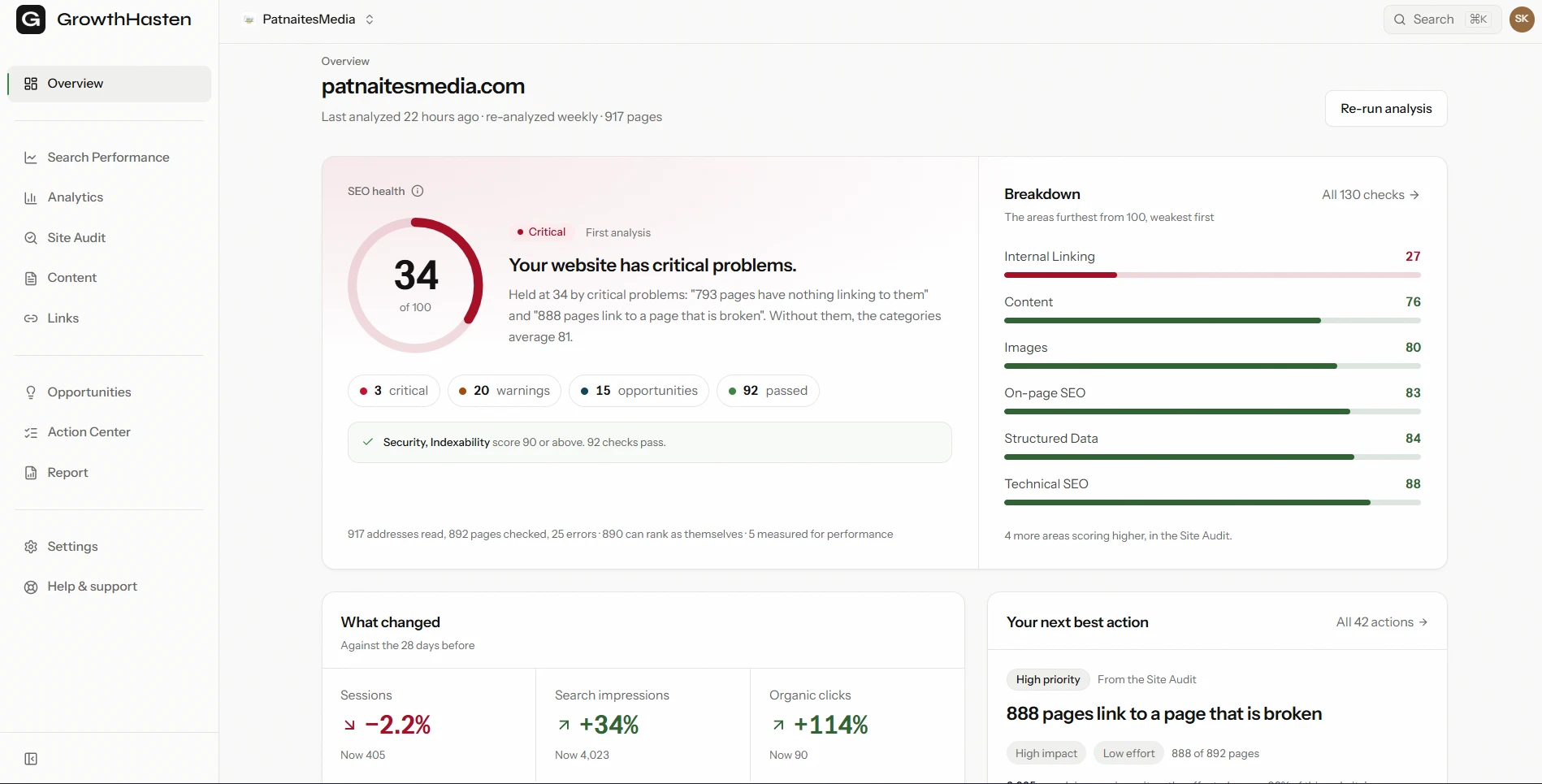
The habit worth building is a fixed two-part rhythm: a five-minute weekly scan for problems and a longer monthly read for trends, both from the same reports every time so the pattern stays legible. This week, open the Performance report, filter to queries in positions 11 to 20, and pick the one page closest to page one to improve first. That single striking-distance move is the fastest return Search Console will point you to, and GrowthHasten's Search Performance view finds those queries for you once Search Console is connected.
Read Your Search Console Data Without Exporting It
Connect Search Console once and GrowthHasten reads 16 months of your queries and pages, names the ones that rose and fell, and flags queries that rank well but get ignored and queries close enough to page one to be worth the push. Free plan, no card.
Explore Search PerformanceQuestions
Frequently asked questions
Is Google Search Console free to use?
Yes, Google Search Console is completely free, with no paid tier or usage limits. Anyone who can verify ownership of a website can add it and see its search data, including queries, clicks, impressions, average position, and indexing status. It is the one SEO tool no site should skip, because it reports data straight from Google rather than estimating it the way paid third-party tools do.
What is the difference between Google Search Console and Google Analytics?
Search Console covers the search side of your site, showing how you appear in Google results: queries, impressions, clicks, position, and indexing. Google Analytics covers behavior after the click, showing what visitors do on your site, how they convert, and where they came from across every channel. They answer different questions, so most SEO programs use both together rather than choosing between them.
How long does it take for Search Console to show data?
Data begins accumulating from the day you verify the property and Google backfills a short history, so you usually see a few days of data almost immediately and a full picture within a week or two. The most recent two to three days are always incomplete because the data is still being processed, which is why you read trends over weeks rather than reacting to yesterday's numbers.
Why is my page crawled but not indexed?
The state Crawled - currently not indexed means Google fetched your page but decided not to add it to the index, usually a quality or duplication judgment. Common causes are thin content, near-duplicate pages, or a page that adds little beyond what already ranks. Strengthen the content so it offers something the indexed pages do not, or consolidate it with a stronger page, then request indexing through URL Inspection.
Do I need to submit a sitemap to Google Search Console?
You should on any site large enough that internal links alone will not surface every page. Submitting a sitemap.xml gives Google a clean list of the URLs you want crawled, which helps discovery, though it does not force indexing. Small, well-linked sites can often rely on internal links, but a sitemap is low effort and worth adding, especially when the submitted and indexed counts reveal a gap worth investigating.

Written by
GrowthHasten Team
Editorial Team, GrowthHasten
Articles from the GrowthHasten editorial team, grounded in primary research, our own testing, and what analyzing real websites shows, fact-checked in-house.
View profile